
Goal and requirements
Section titled “Goal and requirements”Check whether the device already uses backup encryption, then enable it, disable it, or change the password as needed. This page explains what each credential is for and what to check after each operation. Backup encryption management is Core functionality.
The steps below have been checked against the code and interface, but have not yet been followed through in device tests for enabling or disabling encryption, changing passwords, or restoring a device. Test them on a noncritical device with an independent backup first. These instructions do not establish that a backup can be restored. Perform only the operation you need.
Distinguish the four credentials
Section titled “Distinguish the four credentials”| Credential | Purpose | Storage and use |
|---|---|---|
| Device passcode | Unlocks the phone and authorizes trust or a backup | Enter it on the phone; it is not the backup decryption password |
| Device backup password | Encrypts the device’s backup data | Keep an independent copy outside the application; existing encrypted copies may need the password used for them |
| Administrator login password | Authenticates to this deployment’s Web UI/API | Default setup saves data/configs/admin_password and maintains its digest; custom configurations may use a different password file; see Installation and login to change it |
Instance master key (default secret_key) |
Encrypts backup passwords and notification secrets saved by the application | Keep it with the matching /configs/secrets.enc; it does not itself encrypt the phone’s backup data |
Resetting the login password does not unlock an encrypted backup. Generating a new instance master key does not recover an old backup password and can make stored secrets unreadable. Keep an established master key unchanged and include it in protected backups of deployment state.
Before you begin
Section titled “Before you begin”- In the Web UI , turn this device’s Automatic backup off, save, and wait for every operation on the device to finish.
- Back up the deployment instance, including an independent copy of the existing device backup. The current version does not guarantee separate copies for different encryption settings or retention of historical versions. Do not test an encryption change on your only copy.
- Connect the phone to the NAS over a validated USB connection. On the device , enter its passcode when prompted, or unlock it and tap Trust . Keeping it unlocked or its screen on is not required.
- Confirm the deployment has its original valid master key and a writable configuration volume. Do not generate a replacement key for this operation. The app prepares the key on first startup; a missing original key or unreadable stored secret fails startup. Follow Configuration reference for these errors.
- Prepare and independently store the necessary backup passwords. Enabling needs the intended password, disabling needs the current password, and changing needs both old and new passwords. Do not put passwords in screenshots, shell history, or issue reports.
Read the current state first
Section titled “Read the current state first”- In the Web UI , find the device and open Encryption . Wait for Currently: backup encryption ON or Currently: backups not encrypted .
- If the state is offline, still loading, or unreadable, resolve the connection problem first. Do not infer the state from an old screenshot.
- If a local backup exists, open Backups and read its information and file list. Record whether they are readable using View backups.
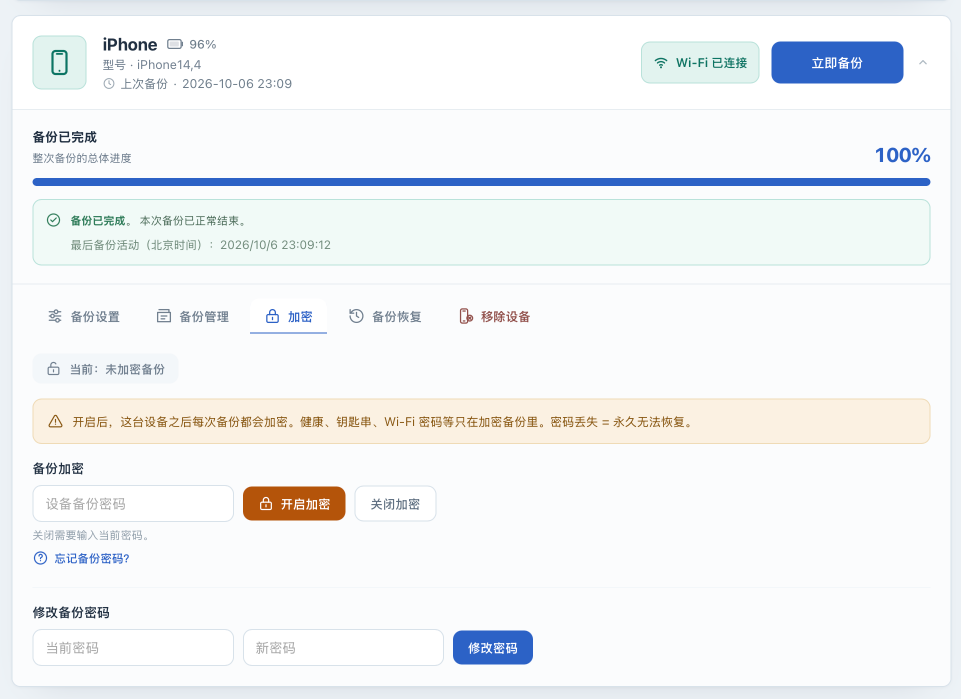
This state describes the device’s encryption setting for subsequent backups. It does not establish that every historical disk copy uses the same policy or that this application has saved the correct password. A successful backup job does not establish that its encrypted list was decrypted.
If the device was already encrypted
Section titled “If the device was already encrypted”Keep the original password if encryption was enabled in Finder, Apple Devices, iTunes, or another deployment. The current UI/API has no separate control that only saves an existing password. Read-only inspection also has no one-time password field.
- Try the read-only inspection above. If it works, record which backup you checked and when, while continuing to store the password independently.
- If you see
MBErrorDomain/207, an invalid-password error, or an unreadable encrypted list, a successful backup job still does not mean the new instance can read the old backup. Check that complete/configs(including defaultsecret_key) and any external master key were restored as a matching set. See Instance recovery for a complete migration. - If a new instance has no saved password, do not use Turn on as an import button or repeatedly disable, enable, or change encryption merely to import a password. Even if an error suggests turning it on again with the correct password, that control changes device state rather than just saving a password. Verify the original password with the tool that previously read the backup and retain an independent copy. This version has no method verified by this manual for importing a password without changing device state.
- If you actually decide to change encryption or the password, use the relevant test steps below. That changes device state; it is not just filling a configuration value.
When you intend to enable encryption
Section titled “When you intend to enable encryption”- Confirm encryption is currently off, complete the preparation above, and save the intended backup password outside the application.
- In Web UI → Encryption , enter that password in Device backup password , select Turn on , and read and accept the warning about losing the password.
- On the phone , respond to unlock or authorization prompts. The submission message only acknowledges a background operation. A cleared password field is not a completion signal.
- In the host deployment directory , run
docker compose logs --tail=200 iosbackup. Wait for the operation to finish, look for备份加密已开启, and also check that operation for a password-storage failure. Do not repeatedly submit the request. - Reopen Encryption to read the device state. After confirming that encryption is on and the logs show no password-save error, perform a manual USB backup, then check that its information and encrypted list are readable.
Expected results are separate: the device accepts encryption, the application saves the password, a later backup finishes, and that backup is readable. If any check fails, record the result and stop further changes. An “on” state alone is not enough to resume the automatic schedule.
When you intend to change the backup password
Section titled “When you intend to change the backup password”- Confirm encryption is on, you know the old password, independent copies are protected, and the device is idle and connected over USB.
- In Web UI → Encryption → Change backup password , fill Current password and New password . Retain both outside the application with a record of their associated copies, then select Change password .
- On the phone , authorize the operation if asked. Wait for
备份密码已修改or an error in the logs, and check for a new-password storage failure. A submission acknowledgment is not the final result. - Once state is normal, perform a manual USB backup and read its information and list. Retain independent old copies and their passwords until each copy you need is confirmed readable. Do not assume one password change makes all older copies use the new password.
When you intend to disable encryption
Section titled “When you intend to disable encryption”- Confirm the current encrypted backup and its password are stored independently. Disabling device encryption does not replace the password needed to read an older encrypted copy.
- In Web UI → Encryption , enter the current backup password, select Turn off , and respond to the phone when asked.
- Wait for the background operation to end, inspect the logs, and read the device state again. The expected state is unencrypted. After a failure or timeout, reread the state rather than assuming nothing changed.
- After successful disabling, the application attempts to remove its saved backup password for that device; do not rely on it to retain the old password. Keep the original password and independent old copies rather than discarding them because the device now reports encryption off.
- With independent copies preserved, validate the subsequent USB backup and reading results before deciding whether to resume the automatic schedule.
If something fails
Section titled “If something fails”| Result | Next action |
|---|---|
| Submitted, but no final result yet | Check the phone and logs. Encryption changes and password changes wait for up to approximately three minutes; reread actual device state after a timeout |
| Device change succeeds but password saving fails | Device state and application storage have diverged. Keep the new password, leave automatic backup off, and check /configs space and write permissions. Do not hide the problem by changing the password again |
| Master key missing, wrong, or unable to decrypt stored secrets | Find the matching configuration-volume copy (including secret_key) and any custom credential configuration or external key copy, then follow Instance recovery. Do not overwrite the existing state with a newly generated key |
| Device offline, busy, or locked | Wait for other jobs, reconnect over USB, respond to passcode or trust prompts, and inspect state before deciding whether to retry |
| Existing backup is unreadable | See List-reading failures and Troubleshooting; do not start by deleting the backup |
| Backup password forgotten | Check your password records first; this project cannot bypass encryption. Apple states that resetting the backup password does not grant access to previous encrypted backups. Review the effects in Apple’s official guidance |
Next steps
Section titled “Next steps”Include the updated host configuration and external password records in instance protection. Resume automatic backup only after observing the required backup and reading results. Device restore is a separate Experimental operation, not a completion criterion for this page.