Goal and requirements
Section titled “Goal and requirements”Read one device’s backup overview and file list, download the full list as CSV when needed, and understand the difference between a file list and backup data. Read-only inspection is Core functionality. It does not modify the backup, but information and list queries currently require the device to be online; this is not an offline file browser.
The CSV contains list records, not the contents of photos, messages, or other files. To create a browsable file copy, review the separate unpacking limits in Experimental operations.
Before you begin
Section titled “Before you begin”- Complete a USB backup and know the device’s current save location.
- Keep the target device paired, online, and idle. Prefer a validated USB connection and respond to any passcode or authorization prompt on the phone; keeping it unlocked or its screen on is not required.
- For an encrypted backup, this instance needs its usable master key and the correct saved device backup password. Completing an encrypted backup in a new instance does not mean the correct backup password has been saved; see Encryption and credentials.
- Allow time to read a large list. Do not start another backup or change its save location at the same time.
Read the overview and file list
Section titled “Read the overview and file list”- In the Web UI , find the device, confirm no job is running, and open Backups . If it says Device offline — backup management is unavailable , reconnect the device first.
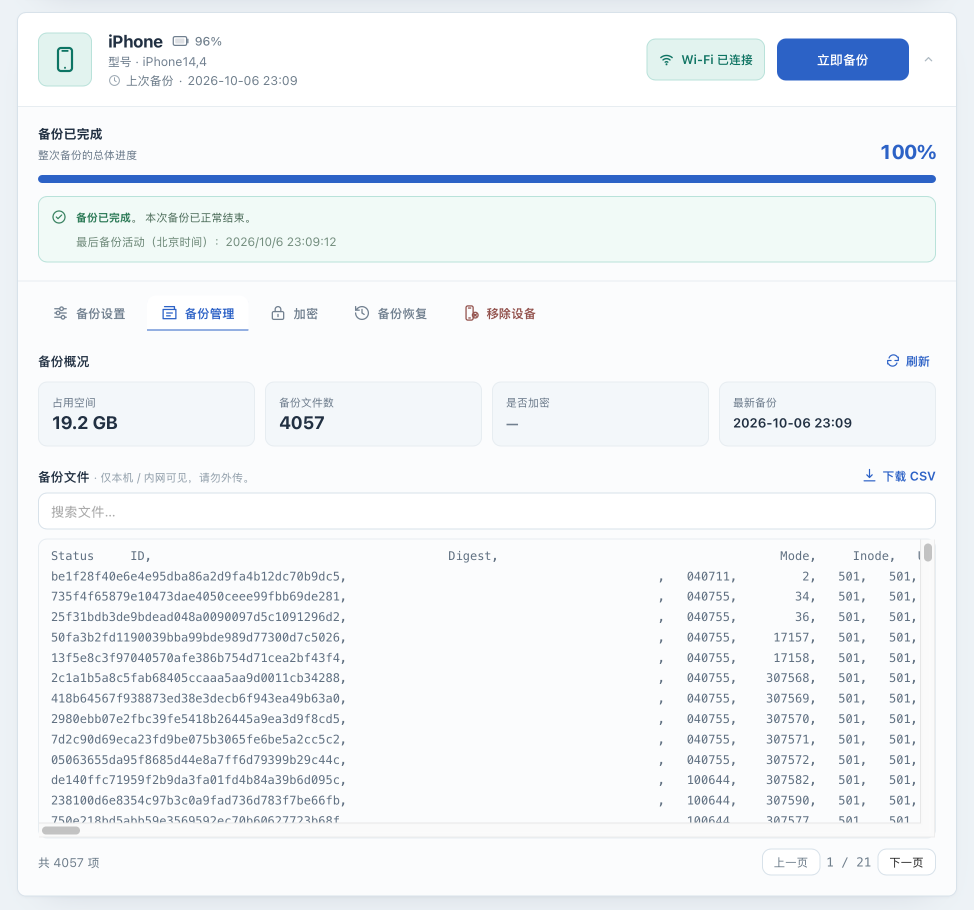
- Select Refresh beside Backup overview . The page reads information before reading the file list. Large backups can take tens of seconds to several minutes; avoid repeatedly selecting Refresh.
- Examine Size on disk , File count , Encrypted , Latest backup , and the list below. Size is calculated from the disk directory. The latest time is the application’s last successful backup record; by itself it does not prove the current directory is complete or readable.
- Wait for file records or a clear error. A size number with an empty list or
—for encryption does not mean the file list was read successfully. An information query can fail while the page still shows the calculated size. - Record whether information and the list were actually readable. When describing validation, record this separately from “job completed” and “real-device restore succeeded.”
Search loaded records
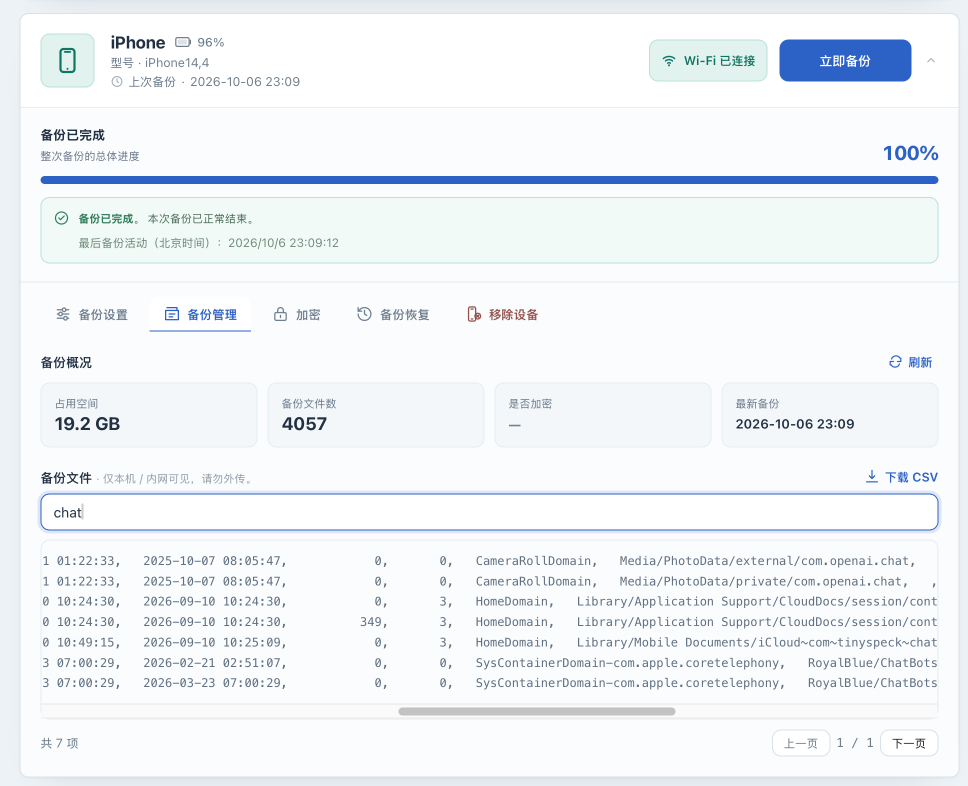
Section titled “Search loaded records”- Enter a keyword in Search files… . The list filters the records currently loaded in the page.
- Use Prev and Next to change pages. Each page shows up to 200 items, and the Web UI loads at most 5,000 items in total.
- Watch for truncated — download CSV for all . Search covers only those loaded items; no matches does not establish that the whole backup lacks that file.
The list shows loaded records that match your search. The list is an index of paths and metadata. Seeing a filename does not mean its contents were opened or that the backup includes every item on the phone.
Download the full list as CSV
Section titled “Download the full list as CSV”- Keep the device online with no other operation running, then select Download CSV . This reads the full list again. It does not export the current search result, and it is not limited to the Web UI’s 5,000 displayed items.
- Wait for the browser download to finish. If the device goes offline, the connection breaks, or authorization fails, the download can fail or be incomplete. A downloaded file or successful HTTP status alone does not establish a complete list.
- On your computer , open the file with a CSV-capable text or spreadsheet tool and check for plausible list records. If a previous successful load reported the full total, compare record counts. Do not substitute a plain-text line count for CSV records, which can contain quoted line breaks.
- Store the list in a protected location. The downloaded filename can include the device identifier, and contents can expose private paths. Redact both filename and content before reporting a problem; prefer only the necessary sanitized excerpt.
After downloading, check that the CSV opens correctly and contains records for the backup you queried. A CSV is not a copy of device data, does not replace an independent copy of /backups, and is not an input file for device restore.
Common failure branches
Section titled “Common failure branches”| Symptom | Next action |
|---|---|
| Device offline and Backups controls disabled | Reconnect over USB, respond to any phone authorization prompt, wait for online state, and retry. A backup existing on disk does not establish offline list support in the current UI |
| Device is backing up | Wait for the backup to end before refreshing; do not interrupt a backup just to inspect its list |
| No backup found | Check the device and save location. Changing the path does not move an older backup automatically. See Devices and storage |
MBErrorDomain/207, invalid password, or encrypted-list failure |
Check the original password, master key, and configuration volume using Encryption and credentials. Do not delete the backup or disable encryption to fix a reading error |
| Size exists but information or list is empty | Treat this as a partial result. Inspect the matching query logs and device/password state; do not infer an empty or unencrypted backup |
| Large list is slow or its download breaks | Keep the device online and wait for the old query to end. Retry once over USB; if it still fails, retain a sanitized error and follow Troubleshooting |
| No search matches while truncation is shown | Search the full downloaded CSV; do not conclude a file is absent from the partial list |
Next steps
Section titled “Next steps”Treat “job finished,” “information/list readable,” “file contents checked,” and “real-device restore rehearsed” as separate results; see State reference. To protect the actual data, continue to Back up the deployment instance. Read Experimental operations before local unpacking or device restore.