
Goal and diagnostic order
Section titled “Goal and diagnostic order”Locate the failing stage before making the smallest useful check. Preserve backups and pairing records. Do not repeatedly restart components, delete directories, or reset passwords while an operation is active. Run the commands below on the Linux host, in the deployment directory . They assume Compose service iosbackup and port 9000; replace custom project/file/port settings consistently.
Record version, connection type, job phase, last activity, phone prompts, and logs spanning a few minutes before/after the failure. Do not capture only the final error caused by an earlier problem. /healthz, device visibility, 100% progress, and delivered notifications establish different facts; see the state reference.
| Symptom | First read-only checks | Next step and stop condition |
|---|---|---|
| Web page unavailable | Local health request, Compose state, recent logs | Fix local service first; inspect firewall/proxy only after local access works |
| Incorrect password or repeated login | Correct instance, administrator password file, /configs mount |
Do not generate a new master key; use installation/authentication |
| Old version after upgrade | /api/version, running image reference |
Check the Compose image, configuration overrides, and project name; see upgrade |
| Connection service unavailable, device presence unknown | USB/Wi-Fi service messages, connection_services, recent logs |
Wait for active operations and bounded recovery; do not repeatedly unlock or pair first |
| USB device missing or pairing fails | Cable, phone passcode/trust prompts, USB/udev mounts | Follow USB workflow and preserve lockdown |
| Manual backup cannot start | UI reason: offline, busy, battery/charging | Meet the stated condition; do not bypass concurrency guards |
| Automatic backup never starts | Enabled/saved state, Beijing-time window, interval, battery/charging | Check scheduling field by field, without repeatedly restarting |
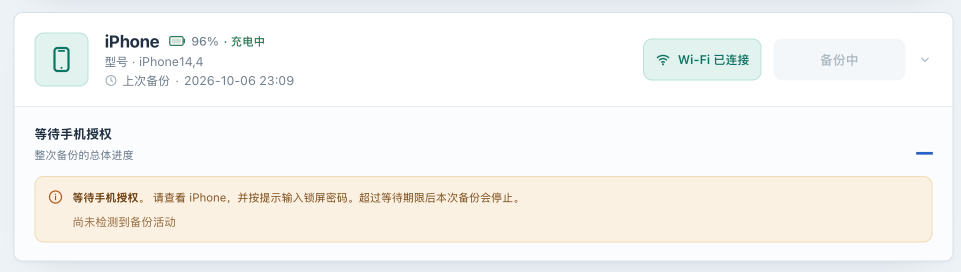
| Authorization wait or unchanged progress | Phone prompts, phase, last activity | Authorize; distinguish preparation from backup_stalled |
| Wi-Fi drops or reconnect loops | Same-version USB comparison, earliest transport error | Start with Wi-Fi; use NAT investigation only with router evidence |
Empty information, failed list, MBErrorDomain/207 |
Device online, original encryption password/master key, logs | Follow encryption and inspection, not repeated password changes |
| No space, permission, or read-only errors | Actual mounts, free bytes/inodes, directory permissions | Fix the specific storage issue; preserve the only good backup |
| Notification test/real event missing | Global/channel switches, rules, delivery result | Follow notifications; tests send real messages |
1. Check service, identity, and logs
Section titled “1. Check service, identity, and logs”-
On the host, confirm the service exists and is not repeatedly exiting.
Terminal window docker compose ps -acurl -fsS http://127.0.0.1:9000/healthzdocker compose logs --since=10m --tail=200 iosbackupA successful health request proves HTTP responsiveness only. For connection refusal, inspect startup logs, port, and listen address first. For a port conflict, identify any old instance before stopping unknown processes.
-
Check runtime version, application state, and image.
curl --user iosbackupprompts for the password without embedding it in the command line.Terminal window curl --user iosbackup http://127.0.0.1:9000/api/versioncurl --user iosbackup http://127.0.0.1:9000/api/statusdocker inspect --format '{{.Config.Image}} {{.Image}}' iosbackup/api/statuscontains device names/identifiers; do not share it unchanged.backup_in_progress_count=0helps diagnose job ownership, but confirm with UI/logs that no other operation is active.encryption_available=truedoes not establish that every device has a correct saved backup password. -
If local access works but another computer cannot connect, check the browser’s host/port, trusted-network routes, and host firewall. The standard deployment uses host networking and needs no separate
portsrule. With an HTTPS proxy, check the local service first, then proxy authentication/TLS. Do not disable application authentication to hide a proxy problem. -
For failed login, use this instance’s default
admin_passwordor explicit custom password file, not the phone passcode or backup password. If the first-start log is gone, use host-sidesudo cat data/configs/admin_passwordto retrieve the default password. Check existence and permissions, without pasting contents into terminal transcripts or Issues. A default-file/digest mismatch fails startup; password changes require a separate file selected in the configuration as described in authentication operations. -
Existing
secrets.encwithout its original key, an incorrect key, or simultaneous key environment/file overrides fails startup. Restore matchingsecret_keyor the original external key without generating a new value or deleting ciphertext. If initialization reports unsupported hard links, use a local filesystem supporting them; preserve the original data and follow instance recovery.
Expected result: distinguish startup, network-entry, authentication, and version problems. Once service access works, move to devices; do not change network, storage, and passwords at the same time.
Process alive, device-list queries failing
Section titled “Process alive, device-list queries failing”A live process and successful /healthz response do not establish USB/Wi-Fi protocol availability. By default, the app scans for devices every 4 seconds and uses that scan to check the connection services. Each service query can wait up to 3 seconds. Automatic recovery is considered only after the service has been running for 15 seconds and 3 consecutive queries have failed. Successful empty lists, untrusted phones and an unreachable individual phone IP do not trigger service restarts. IOSBK_PRESENCE_INTERVAL overrides the polling interval.
Automatic recovery waits for all device operations to finish, restarts only the affected service, and requires a successful device-list query within 15 seconds. The app then registers known Wi-Fi devices again, refreshes the device list, and checks pairing; old pairing errors clear only after successful pairing validation. Failed recovery waits 30 seconds initially and 2 minutes thereafter. Each physical service allows at most 3 automatic recoveries in a rolling 15-minute window. Brief success does not reset that allowance. History is held in memory and starts afresh after application restart.
The Restart connection button also checks whether any device operation is running, returning HTTP 409 while busy. When idle, it restarts the configured services and verifies them. Neither an accepted HTTP request nor process startup establishes recovery. When the allowance is exhausted or a device tool cannot execute, preserve logs and inspect installation/listener configuration. Recovery does not rerun a failed backup; start a new job after resolving the cause. This mechanism detects and recovers service faults; it does not establish that the original listener-failure trigger has been fixed.
2. Devices and pairing
Section titled “2. Devices and pairing”-
Connect the phone to the deployment host with a known data-capable USB cable. Enter the device passcode if a white passcode screen appears; if Trust This Computer appears, unlock the phone and tap Trust . Keeping the phone unlocked or its screen on is not required. If no prompt appears, try the cable/port or reconnect before discarding pairing records.
-
On the host, check USB/udev and persistent mounts. This command shows only container destinations and writable status.
Terminal window docker inspect --format '{{range .Mounts}}{{println .Destination .RW}}{{end}}' iosbackupls -ld /dev/bus/usb /run/udevExpect
/dev/bus/usb, read-only/run/udev,/backups,/configs, and/var/lib/lockdown. Iflsusbis installed on the host, use it to confirm OS-level detection. Detection is not completed pairing. -
Refresh/pair only with no active backup. Check Settings → Removed devices : removed devices do not return automatically. Restoring one to the list can make its old schedule eligible on a later check; review that schedule using device management.
-
For USB mux listener conflicts, identify other backup instances or host services. Establish which instance and volumes are in use before scheduling a conflicting service’s shutdown. Do not restart all host USB services together.
-
If
lsusbsees the phone but the application does not, and logs showCould not set configurationwith0xfffffffa, check whether the Linux desktop mounted the phone as a camera. An iPhone camera mount in the file manager orgvfsd-gphoto2can hold the USB interface;gio mount -llists camera mounts. Finish browsing/importing photos, then eject that phone camera mount in the file manager. With no backup running, use the application’s Restart connection , refresh, and pair again. Ejecting the camera mount does not delete phone data; do not unmount the backup storage drive. The error code is a diagnostic clue; identify the actual process holding the interface first.
Stop conditions: persistent Trust/pairing failures, unknown volume origins, or an active job. Preserve /var/lib/lockdown and logs and use the support channel.
3. Jobs that do not start, stall, or fail
Section titled “3. Jobs that do not start, stall, or fail”- If a job cannot start, read the specific UI reason. Manual requests can be rejected for device activity, charging requirements, or battery level. Automatic jobs additionally require an enabled schedule, a Beijing-time window, and the minimum interval. Manual success does not prove a schedule was saved or is due.
- Once started, check phone authorization prompts. The default authorization limit is
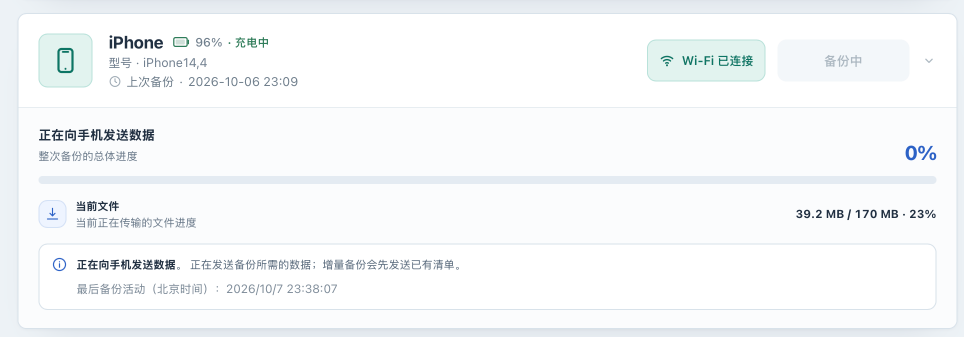
5m; preparation/device-processing waits allow30m, and transfer inactivity allows10m. These bound consecutive inactivity, not total time while transfer continues. - Incremental backups send the old manifest first; a large encrypted manifest can require minutes of device processing. Overall 0%, current-file 100%, or repeated progress alone does not establish a stall. Check the phase and last activity. Even overall 100% needs an explicit success result.
- After
backup_stalled, wait for the old process to exit and release the resources held by the job. Check that the last-success time was not updated by this failure. Retaining the directory does not prove that pre-failure contents are unchanged: an incremental run may already have written data. Protect important copies independently. - Once prompts and connectivity are resolved, start one new job. The current interface has no cancel-backup or checkpoint-resume feature. A failed job does not reconnect at its previous offset, and a new attempt can require another phone passcode authorization. Do not replace diagnosis with larger timeouts, repeated refreshes, or restarting every component.
- After a Wi-Fi job ends, compare USB with the same version and backup path. USB success directs attention toward the Wi-Fi session;
mobilebackup2 (-4)alone does not identify one cause. Use the advanced NAT topic only for cross-subnet connections with supporting RST/idle-reuse evidence.
Expected result: a record of the failing phase, first error, and one comparison test. Stop repeated retries when the same failure returns; keep the logs and test results before asking for help.
4. Backup reading and storage
Section titled “4. Backup reading and storage”-
Empty overview information does not always mean no files exist: disk usage can still be shown when information reading fails. Check the device is online and the original directory is mounted, then follow read-only inspection.
-
MBErrorDomain/207commonly accompanies encrypted-manifest reading without a valid password. Neither the Web password nor the master key is the backup-encryption password. Do not toggle encryption to “repair” an old backup. Preserve the original password and check the matching deployment key/logs in the encryption guide. -
Inspect the actual storage filesystem. These paths apply only to the default layout; replace custom paths.
Terminal window df -h ./data/backups ./data/configs ./data/lockdowndf -i ./data/backups ./data/configs ./data/lockdownls -ld ./data ./data/backups ./data/configs ./data/lockdownInode exhaustion can cause failure even when bytes remain. Unpack needs additional space for a full browsing copy. Phone capacity or current compression ratio alone is not a reliable required-space estimate.
-
For permission/read-only errors, map the failing path to its mount, ownership, and NAS ACL, and confirm that the data volume is writable on this host. The default Compose container root is writable;
/run/udevremains mounted read-only. Fix the affected data mount or directory permissions without broadly changing permissions across the directory tree. Do not make exploratory writes inside an active backup directory.
Stop conditions: I/O errors, unexpectedly missing directories, unknown data formats, or only one valid copy. Protect the data first and plan instance recovery; do not start deletion/restore experiments.
5. Prepare a useful redacted support record
Section titled “5. Prepare a useful redacted support record”- Record
/api/versionversion/commit, host/NAS model and architecture, iOS version, USB/Wi-Fi, encryption state, and reproduction steps. - Include expected/actual behavior, phase, phone prompt, first error, and operation time. User-visible times use Beijing time. Keep only the necessary failure log window, preserving event order and error codes.
- Remove full device identifiers/names, addresses, personal paths, notification targets/tokens, passwords, and the master key. Do not upload credential configuration files,
secret_key,admin_password, pairing records,secrets.enc, backup contents, raw packet captures, or complete container environments. First-start logs may contain a generated administrator password; review every line before sharing. - Use SUPPORT for ordinary problems and the private channel in SECURITY for sensitive issues. Do not repeat a destructive action just to prepare a report.
Next: after recovery, validate the main USB workflow, then re-enable schedules and notifications individually and record what remains unverified.